Saturday, 27 February 2021

X / Z Axis upgrade Parts 1 - 6 - CNCnutz Episode 251 - 256

 Hi Guys,

Its been about 2 years since I did upgraded my Y axis and I've been planning the upgrade of the X / Y axis ever since. I've had a general idea of what the new final build will look like but there were many final points I wasn't sure about. Even as I write this there are still some details I have no idea about like how I will connect the X axis motor drive. 

I've put it off long enough and thinking about it won't help as there are some things I just need to see and work on as I go so I am better off getting on with it instead of thinking about it. 

So Why do I want to update? The original design was a Joes Hybrid 4X4 cut down to 2 & 3 to suit the area I have available in my workshop. It has been a great machine but it is also has developed an issue with the X / Z carriage. It is made from MDF which is an excellent material for making things. I'm just not sure MDF is the best choice for mechanical items like this especially 10 years on and after it has done as much work as it has. I could have just cut a new carriage and probably had it replaced in a day but I want to try something new. 

With all this in mind I am just going to get on with it and start the build, or in this episode the tear down. I have given myself 2 weeks to get it back up and running so lets see how I do.


Part 1


Part2


Part 3


Part 4


 Part 5


  Part 6


Components used in the build

Note: These links are not affiliated links. They are simply where I purchased my components from. I am not experienced with linear bearings nor do I know know the quality of the various components.


Z axis
https://www.aliexpress.com/item/4000317611601.html

 The machining of the aluminum parts look to be good. The quality of the linear rails and ball screw is unknown as they are generic Chinese components. That said they are the same parts I would have bought if I was building one from scratch.
The Z axis travel is 250mm


X axis Rail
https://www.aliexpress.com/item/4000822973126.html

The extrusion is called 80160 and is a very solid extrusion.
There is also a 60120 version of the extrusion is a smaller one is required.

https://www.aliexpress.com/item/4000826413617.html

The Linear rails are 20mm linear bearings.


X Axis Rack and pinion drive
https://www.avidcnc.com/standard-rack-and-pinion-drive-nema-23-p-50.html

 This is an updated version of my X axis drive as I bought mine about 10 years ago.
There are also Pro drive versions available which have better tolerances and uses bearings.


Drag Chain
https://www.aliexpress.com/item/32995303844.html

This chain forms the major cable runs on my machine. It cannot be opened so that may be something you would like to consider when selecting a chain type.


Spindle
https://www.aliexpress.com/item/32803624943.html

The spindle is 2.2kw or 3hp. It has ceramic bearings and I replaced my previous spindle because the bearings are making a rumbling noise.


Misc
Tee Nuts 40 series 5 & 6mm
https://www.aliexpress.com/item/32857315449.html

Tee Nuts 30 series 5mm
https://www.aliexpress.com/item/32690187974.html

Cap Screws
https://www.aliexpress.com/item/10000150053486.html

Inductive sensors
https://www.aliexpress.com/item/4000053393526.html


Cheers Peter

Monday, 14 December 2020

DIY CNC Pen Holder - Episode 250

 This project is to make a pen holder that will hopefully be easy for you to make using off the shelf parts and basic tools. It seems now that the key piece of this project may not be available in other countries. I hope that even if the same piece is not readily available there will be something similar that can be used. Hopefully this project will serve as inspiration for making your own pen holder.

https://www.reece.co.nz/product/dux-plugged-nipple-npn3-15mm

Why?
What use is a pen holder other than drawing pretty pictures.
A pen can be used to draw on stock to mark locations for hold downs. It can also mark out where machining will take place before you commit to doing the actual machining. This works better for metal stock where the pen can be cleaned off, rather than wood which will soak in the pen but it is a possibility.


Parts used to make the pen holder


Tools used

  • 12mm drill to mark center of the endcap
  • 11mm drill to drill hole in center of the endcap
  • 1/4 - 20 tap 


Make don't buy
When you look on line for CNC pen holders you find very expensive ones up to 140USD.
They will work no better than a homemade one that you can make yourself for $10.
I'm sure the commercial version will look very nice but it won't work 14 times better.
The more elaborate one I made on the lathe does not make any real difference when it comes to drawing. There is no plan for this as it will depend on available parts. The only thing you need to remember is that the tail of a Sharpie Mini is a 2 degree taper.
With the dampening caused by the neat fit of the pen holder the solution is to either drill a breather hole in the rear of the tool holder to allow air in and out or to mill a shallow groove or file a flat from front to back of the acetyl Sharpie holder to allow air to move between one end and the other. As it stands the dampening is no a problem.

The Spring
Finding and specifying a spring of the right diameter and strength is a problem especially when others have to find the same item for their project. Fortunately I had a set of 3M earplugs that I accidentally left in my pocket and put in the wash. To my annoyance I found they lost the slow expansion needed for an earplug but it turns out to be exactly what I needed for the spring in this project. I'm sure you will have no problem finding one for your project.


Merry Christmas
I'd like to take the opportunity to thank you guys for your continued support of my channel  and for taking the time to watch.Christmas is just about here so I would like to wish you a Merry Christmas and a Happy New year.

Until next time
Cheers Peter


Sunday, 13 September 2020

Make Smooth running GCode - Episode 249

 In this episode I intend to show how to produce smooth running GCode using your CAM software as well as how to set up Constant Velocity in Mach3.
I know in the last Video I expressed dislike for Constant Velocity and the distortions that it causes to your project to a larger or smaller degree and I stand by that, but it has come to my attention that some CNC controllers are unable to run properly in Exact Stop mode forcing the user to use Constant Velocity whether they want to or not. With that in Mind I demonstrate how to evaluate the CV setting you set in your machine without having to machine the actual project. This may seem wrong but the best way to check if you machine is moving smoothly is the feel the table and listen to the machine moving. You will very quickly feel and hear any harsh movements and hesitations. The hand may be faster than the eye but it is more sensitive as well and less easily fooled. 


Steps to Smoother motion

  1. Convert Bezier curves to circular arcs where possible. While I demonstrate this in Vectric Aspire you can do the same in other CAM packages. Remember if you edit a circle it will convert it to Bezier curves and you should check and convert it to circular arcs before creating your Gcode.
  2. Use Ramps and spirals to move the Z axis down rather than direct plunging moves. This not only puts less strain on the cutter it will eliminate the little scallop you so often see on plunge moves as the cutter is pulled off center. 
  3.  If possible use exact stop machining for more accurate machining but if not then ensure that your Constant Velocity is set up properly for the best results.
  4. If your machine has high acceleration it will run better in constant velocity mode compared to one with poor acceleration. Higher acceleration reduces the error in machining.
  5. If you are using exact stop you can afford to use a lower acceleration which will reduce jarring start and stops and since the machine is moving exactly where you tell it to go, it doesn't matter how long it takes to do it. 
  6. If you are using feed rate override you may find it interferes with your Constant velocity settings. If you are not sure reduce your feed rate to  100% and check.


The reason for wanting smooth motion is to get a good finish on your part and your machine will run better as well. This is true in both CV and ES modes. If you find that your machined part is not quite as it should be and you are using Constant Velocity then consider the way CV works and if it could be the issue. The conversion of your drawings to output curves instead of straight lines and using Ramps will assist in making Constant Velocity run better and will reduce and maybe eliminate toolpath changes. 

Don't get me wrong. Constant Velocity works well for hundreds of thousands of people and they never notice a thing. On artistic 3D projects it will work extremely well as there is nothing particularly critical about it and will add to the overall smoothness of the model. But maybe you have notices the odd project where something wasn't right. A corner cut, a piece slightly out of shape and maybe they don't matter but now you know how Constant velocity works you might be able to identify and make improvements.

If you are fortunate enough to have a  control system that uses Exact stop properly then give it a try and use the hints on improved Gcode to see how it works for you.

Until next time

Cheers
Peter


Sunday, 23 August 2020

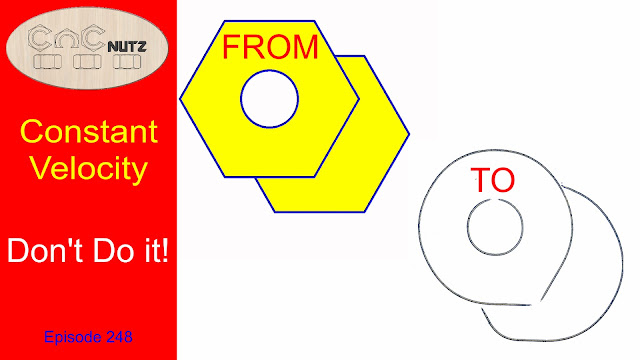
Constant Velocity - Don't Do it! - Episode 248

 When I first started out on my CNC adventure I used Turbo CNC for my controller and it couldn't do Constant Velocity. All I had was exact stop and having heard about how wonderful it was I couldn't wait to change to Mach3. In the meantime while I saved up to buy the CNC magic beans I had to learn how to produce Gcode from my CAD software software that would run smoothly and not try and shake my machine apart. I turned out to be an easy process but I couldn't wait for the promise of Constant velocity.
Finally I upgraded to Mach3 and there were many wonderful things i could now do but to my disappointment the one thing I wanted turned out to be a disappointment. The realization that constant velocity isn't all it is cracked up to be. People might say that I didn't set it up properly and maybe they are right, but set up properly or not it doesn't alter the fact that when it turns on it alters the Gcode file that I spent hours working on. This is a big problem with parts that need to fit together and more trouble than it is worth.
I bet a lot of people use it without realizing what it actually does. How many people spend hours looking for a fault that is distorting their parts and not realize that it could be constant velocity doing exactly what it told and distorting your part. You slow the machine down and the part comes out better because CV behaves differently at different speed. It may even turn off at the lower speed.

Click to watch video


The Mach3 CV is very basic with only 3 parameters with which to change how it works but other software have more sophisticated algorithms to govern behavior. This might make it work better but it does not alter the fact the CV changes the tool paths that you spend so much time crafting. 

It's time to take back control.

When it comes to parts that need to mesh together like inlays CV is your enemy. Unless it applies the same distortion to the mating parts they will not fit together properly. The same applies to wooden joints and VCarving. If the machine starts making shortcuts all in the name of smoothness and speed then thins are not going to come out as you want.

The Answer

Converting your Cad drawing to circular arcs and using a post processor that outputs arcs will effectively do what the controller does except the conversion process is under your control and done my a much more powerful process instead of being done on the fly using a couple of hundred lines of Gcode to figure out what it thinks you want. If you do your job properly the file will run smoothly and accurately.

When working with inlays and other meshing parts the slight adjustments you make to the drawing can now be applied evenly to both parts so that they will now mesh as you want. 

When is an arc not an arc?

You may surprised to learn than not all arcs are the same. Gcode can only describe circular arcs. An oval may look like it is made of 4 arcs in your CAD software but these are bezier curves and cannot be described in Gcode. The result is Gcode made up of hundreds of straight lines making your Gcode file long and run horribly.

In the next episode I will be looking at creating Gcode that runs smoothly eliminating the need to use Constant Velocity if your machine can handle it. Even if it can't and you are forced to use CV it will still improve your machining and reduce the effect that CV has on your project. I will see you then.

Cheers
Peter

Saturday, 23 May 2020

Making a Raised Chair Base - episode 247

I was asked to make a quick raised base to lift an armchair a few inches up off the floor. The chair needed to be tilted such that the hip was higher than the knee. I looked around the internet to see what was about for inspiration but didn't find anything that was useful. So I started designing my own. 
While I could have attached a couple of sticks to the underside of the chair and been done in no time I wanted to make it adjustable and allow for the correct angle of tilt. I also know that having a chair at the right height can also make it easier for older people to get in and out and there is a possibility that the base may become permanent even after it is no longer needed. If it does then some paint or stain can be added to make it blend in better. 
The solution was to make the legs screw into the base giving me the adjustment I want but I wanted to avoid welding anything. I think I succeeded.


Click to watch video


Problems

Sometimes problems are a good thing because I miscalculated the height and realized too late to go get new bolts for this project. Fortunately the solution was simple and gave me a much better and satisfying finish. The revised foot design is not only better looking it is simpler and mechanically more rigid. The word of the day is Serendipity.

Did you spot the problem with the base when I attached it?
I'm sure quite a few eagle eyed viewers will have spotted that my base did not line up perfectly with the existing woodwork. While I measured the top and bottom and found that the base tapered 30mm over it's length I had a nagging doubt that the angles of the existing woodwork would be the same on both sides. As it turns out I was right. I probably should have measured the angles and  used those in my drawing but such is life. If it becomes permanent then when it is removed for painting It can be fixed then. After all it is "temporary"

Last Minute Changes
As with everything there are last minute changes and as you can see in the thumbnail above I ended up removing a nut from the front foot and put it on the rear. This gave me more slope and dropped the front of the chair about 10mm. The back can be raised even higher and if the front needs to be raised more the extra nut from the rear can move to the front to lock the foot in place. The center nut on the rear is just holding the spare nut for the front.

Wooden Threads
How good are they really? I used them in a previous video and found that they work surprisingly well but I would not use them where they were holding something under tension or compression. There trick with this design is that the thread holds nothing other than the foot when the chair is lifted. Once the foot height is set the top nut is wound up to the top and gently tightened to stop it being unwound and so that the chair rests in the nut and not the wooden threads. The top washer and nut is really important to this design.

Final Thoughts
Hopefully this will give you some ideas if you find yourself needing to raise an armchair or similar for a friend or loved one. At the very least I now have an adjustable foot design I can use in the future on projects that need leveling feet. Simple to make but very effective.

Hope you are all staying safe and I will catch you next time.

Cheers
Peter

Friday, 24 April 2020

Changing between Mertic and imperial the easy way - Episode 245

These are unusual times we are living in. Trapped at home with only a long list of jobs that I have been avoiding for years.
I received a question the other day about running files in imperial on a metric machine and it seemed like a good topic to cover as it is not the first time i have been asked this. When you first set up your machine you need to choose the unit of measurement that you want to use on your machine. If you live in the USA you will most likely choose imperial and if you live anywhere else you will probably choose metric. Having made the decision are you stuck with your choice or can you change it easily? Fortunately Gcode has some commands built in just for this situation. G20 & G21
While Control software like Mach3, Mach4, LinuxCNC & Masso  use G20 &G21 other software like UCCNC do not. But all is not lost. If you want to use he other unit of measure you just need to make a 2nd profile. 1 for Metric and the other for imperial. Not as good as using G20, G21 but it still works.


Click to watch

So the long and the short of it is that no matter what Native unit of measurement you set up in your machine you can machine any Gcode file given to you in any unit of measure. 

Is it advisable? That is a completely different question. While I am not keen to run other peoples Gcode on my machine and any Gcode I make will always be metric I can see where this could be very handy. In these times of makers spaces where a CNC machine is a communal item it is likely that some people will want to work in Metric while others work in imperial. This is where the G20, G21 will shine. Users can design what they want in whatever unit of measure they want and can still machine it on the same machine. 

So next time someone gives you a Gcode file that is in the wrong unit of measure, you will know that you are able run it anyway.

In the meantime I hope you all keep safe, keep washing your hands and try not to touch your face. 

Cheers 
Peter

Thursday, 26 March 2020

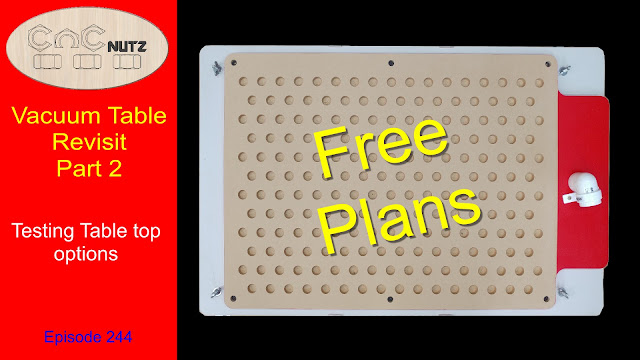
Vacuum Table Revisit Part 2 - CNCnutz Episode 244

Welcome back to part 2 of my Vacuum Table build.
In this Video I investigate 2 tabletop designs for their holding ability, and talk about the vacuum I purchased for this project and if I get time to clean up my workshop.
I also I have links to the cad files for those who want them. 

In the last video I built the table base from a piece on Melamine coated MDF and sealed the edges of it to prevent air leaks. The one thing I learnt for sure was that MDF is a very porous material and when it comes to air you need to seal it. I sealed mine with several coats of acrylic paint though you could also apply edge banding to the MDF as well. In that case you might want to keep the outside shape square for easier banding.

I also made a top that was plain MDF on which I skimmed 1mm of material off the entire back and 1mm off the vacuum area on the front. This is to open up the MDF by removing the compressed surface to get access to the less dense material for greater air flow. I made the tabletop as easy to make as possible as it is the part that will be damaged while in use and a new one can be made quickly once it has no more life left in it.

Click to watch


 Material list

1 x    940 x 600 x19mm  Melamine coated board for the bottom  
1 x    3 metre length of 6mm rubber cord  for oring seal
6 x    6mm thread inserts x13mm long
6 x    6mm counter sink head bolts 25mm long
1 x    840 x 600 x 19mm MDF for Table top
1 x    25mm 90 degree elbow for water pipe
1 x    32mm saddle to match elbow
Paint or similar to seal MDF edges and vacuum port entry area


Download the Cad drawings here.
The Zip file contains 3 drawings in 2 formats. Aspire 9.5 or higher and DXF 
There is also a picture of the completed part for each file and a toolpath summary

Update:28/03/2020    Just added Vcarve Pro files for those using 9.5 or higher.

https://www.dropbox.com/sh/2sxn6jmmrfqbrbm/AADUteDLu20O1fqQsZUGEnpoa?dl=0

Packaging foam

The packaging foam I used in my experiments that shows the best results was from some packages I received in the mail. It was 0.5mm thick and I have not found this product available in stores in this thickness. I did find thicker versions of this packaging foam on line in 1mm, 2mm, 4mm thicknesses and from my tests I think 1mm will be the one to use. I have not tried this myself as I am currently unable to get the foam due to lock down conditions here in New Zealand but will try it out and update this page once I can get the required material. I think the added thickness of the foam will give better holding and provided a buffer for when you cut through the material.
I can buy 100m of 1mm thick x 600mm wide for about $46 NZD and this will cover the board in a single piece 180 times over. I need to do more testing.

https://www.hardypackaging.co.nz/products/polyfoam?


Vaccum

The Vacuum I chose for this project is the Karcher WD6P.
The ability to control the vacuum power level means I can reduce power of the vacuum to a level the will prevent the vacuum burning out. It also allowed me to test how the vacuum power level affected actual holding power. The Vacuum can only pull a certain amount of vacuum due to it's design and once it reaches that level it stops. Additional power provided to the vacuum gives only a minimal increase in vacuum but all the extra power has to go somewhere and it is dissipated as heat. 750 watts of wasted heat is a lot to get rid of.
 Treat your vacuum with care and monitor it's heat output. If it is overheating stop and resolve the issue. Do not use a vacuum that relies on the air passing through the vacuum hose to keep it cool. Since you are blocking this cooling path it will burn out in a very short amount of time.


That's all for this project so until next time take care and I will see next time.
Cheers
Peter

Thursday, 27 February 2020

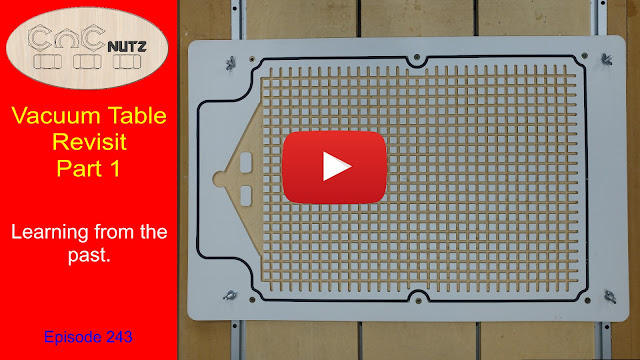
Vacuum Table Revisit - Episode 243

It was almost 2 years ago that I made my first vacuum table and even today I still get questions about the table. people want to know how it is going and requesting drawings to make their own. 
 My thoughts were that the old table was a bit more complex than it needed to be and I wanted to make another. This time I wanted to use a base material that would not leak as plain MDF does. I searched around to see what I could find and managed to get some melamine coated MDF. MDF is porus as I found last time but with the major surfaces sealed by the melamine coating I only need to seal the edges. To do this I gave the edges 3 coats to ensure a good seal.
Next I looked at the seal between the base and the top. Last time I simply screwed the 2 pieces together and it seemed to work but this time I bought 2 meters of  6mm round rubber to act as an o'ring. This will seal the top to the bottom and allow me to machine new tops as replacements and also to experiment with as I still have more to learn.
Next I added threaded inserts to attach the base to the top. This will give me a consistent method to attach the top and allow easy replacement. Something to note I didn't screw the top screws down to compress the o'ring. The screw down until they stop turning under gentle pressure and that is all. I do not want to keep the o'ring under constant compression but will allow the vacuum to do this when it is in use and it can return to it's normal state when the vacuum is off. I hope this will prolong the o'ring life.
This time the top has no pockets cut into it but has been left as plane MDF. While in the video I get more than enough sideways holding I don't seem to get much in the way of vertical holding. Does this mean that pockets will improve the table holding or am I missing something.  This I hope to find out in the 2nd part of this build at which time I will also release the CAD drawings I used to make the table for those who wish to make their own.


Click here to Watch


The new vacuum
I have done a test run with the new table and found that new vacuum despite having a separate cooling fan and cooling path the vacuum still gets uncomfortably hot when running under high load. Fortunately I can turn down the power of the vacuum and it runs cool at 1/2 power and up to 3/4 power it seems to be ok. The lower I have to use the better. I hope to give a better report in the next video on whether it works as well as I hoped.

Update
Having done some more testing already I have found that using a flexible board to test vertical holding is not a good idea and I may have been fooling myself. because the board is flexible I can peal the edge up little by little and once it lifts it comes up easily.
I found that once I put the same size piece of melamine onto the table it was a different story. Because I have to lift the entire board as one piece the force is a lot more and it is much much harder to lift. This doesn't answer my question about the pockets in the top and if they will help so in the next episode I will investigate this as see if there is an advantage to doing the extra work and machining pockets.


Cad Drawings available in Part 2 of this video. Use the link below
https://www.cncnutz.com/2020/03/vacuum-table-revisit-part-2-cncnutz.html


Until next time, thanks for watching.
Cheer 
Peter


Tuesday, 3 December 2019

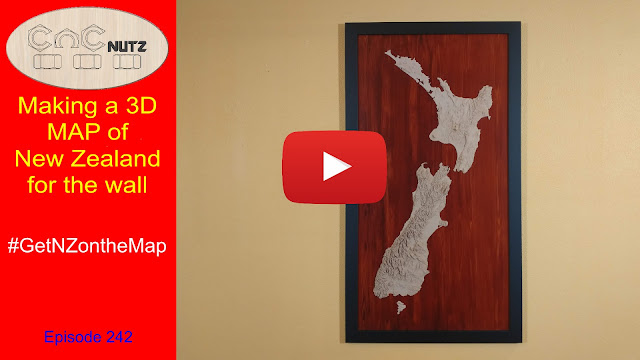
Making a 3D map of New Zealand - Episode 242

This Episode follows on from my previous map carving video.
This time I'm going big with a full map of New Zealand in 3D to hang on the wall.
As with quite a few of my projects I changed my mind part way through the build to adapt to unforeseen happenings as well as a much better suggestion to frame it properly.


My original plan was to created a wall hanging as shown on the left but the problem was that the differentiation between the land and the sea is not well defined on a height map so to make it more obvious I ran around the land with a 30 degree Vbit cutter to mark a line and show where the land ended and the sea began.  I didn't realize at the time that the MDF model had bowed up just enough in one spot to allow the Vbit to cut all the way through. Not a problem I thought, I will cut the land masses free and then make a cutout shape as shown in blue. I can then glue the land back in place creating a definite distinction between the land and sea. The more I looked at this the less I liked it until Mrs CNCnutz suggested that I put it on a rectangular board and frame it. Painting the board blue wasn't an option for something this big but could I make a wood grain pattern on a piece of MDF as large as this project? I have never done anything this big before, not even close and that was many years ago.


Well the obvious answer is Yes I can and did and the video below will show you how.


Click to watch


Free software to convert a Grayscale height map to an STL.

The program is called    heightmap2stl-gui

 https://github.com/jeremysimmons/heightmap2stl-gui/releases/tag/v1.3.4

This software can be used for any Grayscale model and once you have converted it you can import the model into your favorite 3D CAM software such as VCarve Pro.

Just down load he zip file heightmap2stl-gui.zip and put the 2 files inside into their own folder. The program does not need to be installed but runs direct from the files as a standalone program. I just put it no my desktop and ran it from there.

There did seem to be a size limit to the model that could be imported so if you find your image is too big just reduce it's size using photo editing software but don't mess with the image color. The actual height won't change as changing size doesn't change the Grayscale of the image itself.


Wood Graining 

Wood graining tools are very simple and the chances are that you have seen them before and wondered what they were . Here are some sources of wood graining tools and don't forget to check out your local hardware store as well.

Ebay
https://ebay.to/2RcYTzk

Amazon
https://amzn.to/2qhuchg

Aliexpress
http://bit.ly/2YcL0CN


The sealing coat on the MDF was Orange Shellac flakes dissolved in denatured Alcohol.
This both seals the MDF and provides the yellow background colour. 
The stain was Resene Colourwood water based stain and the colour I used is Dark Rimu.

The sealing coat for the finished board was an acrylic vanish though I no longer know the actual brand. 

As a personal side note, when applying a clear coat to any 3D project it is best to use a matt finishes rather than gloss. Matt is more forgiving of brush marks and gloss can make viewing the model a lot harder.

Tapered Ball Nose Cutters

Here is the supplier of the tapered ball nose I used in this project.
I used the R1.0xD6x30.5x75L

Just be aware that the tip measurement is a radius not a diameter. So R1.0 is a 2mm diameter cutter. 

http://bit.ly/361mk2O


That is all for this project. I hope you enjoyed it and will join me next time.

Cheers
Peter

Sunday, 22 September 2019

How to Make a 3D model of your Home Town - Episode 240

I don't know about you but sometimes I start making one thing and end up making something completely different. Maybe I have a short attention span or I'm attracted to bright shiny objects, but whatever it is it makes life interesting. I started out wanting to make a model of New Zealand but ended up making a model of my home town instead. To be honest I think in this case it turned out to be a much better project than the NZ model would have been as I have now learnt things about my home town that I didn't know before. It makes me want to make more models of places just to see what I can learn about them.

Click to watch


The Secret Sauce
The key to this project is the website https://terrain.party
This will let you create a model of your home with up to 60km square. It will give you a series of Height maps that you can use to make your model. I looked at the range of maps it gave me and the ASTER 30m maps seemed to be the most up to date with good detail. You can look at each and make your pick of which you think is best. I really didn't see any improvement bu using a smaller area so I would personally get the 60km map and cut it down manually by using the vector boundary method I show in the video.

Machining Strategy
When it comes to the final cut 10% step over in MDF is plenty given that MDF is not known for it's quality detail capture. The problem comes when you need to decide the depth of cut for the roughing pass. It's all about compromise. If you go overboard with the depth of cut it can take two or three times the amount of time to do the rough cut as it does to do the final cut. As far as the final cut goes I mention an issue with the way small layers of MDF can fall off but having cut the model with both a 2mm and 4mm depth of cut I'm not really see a quality difference in the final part. I think hat so long as the finishing cutter can handle the remaining material on the board the deeper the depth of cut the better within reason. I wonder if a taper cutter would be able to machine the entire project without a roughing cut.If you have any experience why not leave a comment here or on the video.

Lessons learnt
What I learnt from this project wasn't about machining or 3D model making but about my home town. I've lived here for over 50 years and never realized what it looked like. I've visited the places and seen it from the air or from hill tops but I haven't understood what it really looked like until I made this model. I look forward to making more in the future including my New Zealand model.
I had a look at what I thought would make interesting 3D models like The grand canyon and the Victoria falls but they just don't compare to my own backyard when seen in 3D. I would never have guessed. Many visitors come to the West Coast of the South Island and tell us how beautiful it is here but because I see it everyday I no longer see it. Maybe it's time to wake up and have another look.

Until next time Thanks for watching and if you make a model of your home town I would be interested to see it.

Cheers
Peter

Saturday, 31 August 2019

The Completed Console Part3 - Episode 239

Just a few tweaks needed to finish this project off so I thought i would have a little bit of fun with it.
I recently saw a cartoon as I was scrolling through Facebook and thought I could use that as a long drawn out gag for this video because realistically other than adding paint and a few holes there wasn't much else to show.  For those of you not familiar with my channel the voice of the joker is played by Chip who has appeared on a few oh my videos over the last 2 years.
Don't be fooled by his cute appearance. Beneath that fury exterior lies a fiendish sense of humour.


Click to watch


 The Design
So you would be forgiven for thinking the final design lacks a certain amount of  stylishness and i take no offence. I'm not going to argue with you either but in my defence the design has a few requirements that ultimately shaped the final project. Unlike most CNC controllers this needs to be portable. I need to disconnect and move the entire unit quickly and easily. It has to be sturdy and not unbalanced so it won't fall over. The build needs to include some additional features not found on a regular CNC console such as 3 HMDI outputs. One for the touchscreen, one for the wall mounted monitor and a third for video capture. Masso needs to mount externally for ease of  shooting tutorial videos as well. None the less if the back panel was rotated everything on the outside could be mounted inside no problem. 

Files to make your own
If you would like to make your own you can find the files here.

bit.ly/2LCmveS


Changes
The one change I would like to have made was making the ear panel a hinged door for ease of access. I have thought about it but haven't quite  figured out how I could modify it now. Hopefully once it is complete I will not need to touch it again.
  

The Future
Part of the reason for building the new console was practical but the other is that I can now use to go through setting up Masso step by step in the hope of creating a comprehensive reference guide for connecting and configuring a new install.
If you are interested is seeing the process then why not subscribe to the CNCnutz Masso Edition channel  https://www.youtube.com/channel/UCDLVKDi-aTYv7Z7omdaj1jg
That way you will see all the new episodes and even if you don't have Masso you will still learn tips and tricks you can apply on your current build.

The next project.
A friend of mine asked for some help with a project he wanted to do and it got me thinking. I would like to do something similar but on a larger scale if I could. While I'm confident I can draw and machine the project no problem painting it is another matter. Ideally I need an artists help but I will have to wait until it is cut and see where it takes me. 

In the meantime thanks for watching and reading and I will catch you later.
Cheers
Peter 


Sunday, 4 August 2019

How I desiign a Project Part 2 - Episode 238

Sometimes you have to think of others when you design a project especially if you are thinking of sharing your plans. A lesson I should know by now but sometimes I forget that taking the easy way out or trying to save material can make a project far more complex than it needs to be. 
I forgot that when I did the initial design of this project and had to return to the drawing board literally . While the outcome is exactly the same the ease with which the new version of the project goes together makes the redesign worth the effort.
While small projects are easy enough to do on the drawing board I like to make these larger projects in small steps. That way I can make and test a part before moving onto the next one. After all that is the way I learnt to do it when I was a youngster and I don't see the need to change now. Especially for projects like this where they need to fit other parts such as the monitor. Something you think will look good on the screen may not be right when you see it built.

Click to watch

The files
If  you would like the files I have used to make the console build so far are available here.
Please be aware that the build is not yet complete and changes may still be made. 
While I mention that there is room in the rear of the console to mount Masso the area is not big enough to mount your stepper motor drive system, VFD, and multiple power supplies.
It is designed to house Masso and it's power supply. It is envisioned that the other hardware will be housed separately. This is designed to suit my requirements.
Feel free to modify the drawings in any way you like to suit your needs.


bit.ly/2LCmveS

Draw runners
The draw runners I used are 8" (200mm) draw runners as shown below. I bought them locally but you can use whatever you have available in your area though this style of runner is very common and you should have no problem locating some in your area.
 

Lessons
If you take nothing else away from this episode remember the screw hole with rear countersink trick. My Father taught it to me and I pass it on to you. If you drill the right size hole and countersink the rear your joints will always pull up tight.

And if you don't think that using a corner stick to join 2 boards together is very good or will not last think again. The table that I now sit at while typing this blog entry is made using this type of joinery and I made several of them 30 years ago. They are just MDF with corner sticks to join them together but they look like they were made yesterday


Thank you for your patience. It took longer to get this far than I thought but a redesign half way through doesn't really help. Even though I don't think it needs it I will be gluing some of the parts in place before I paint it. What colour will it be? You will need to wait for the next part. I couldn't tell you even it I wanted too because I really don't know as I write this.

Until next time.
Cheers
Peter

Wednesday, 26 June 2019

How I Design a Project - episode 237

Have you ever wondered how I design a project? 
No?
Oh well, your about to find out anyway. This video is the first part of a series on designing a project from the beginning. Unfortunately as you probably know this sometimes isn't the most glamorous part of the process and to be blunt can be a bit boring. Even worse is having someone trying to pass on their thoughts and plans. At theses times it is best to just nod and smile a lot but this part of the process is important. If someone came up to you and asked you to make them a box then like me I'm sure you would spend the next 5 minutes or more getting as much information about the box as you could. Height, width, depth, material, hinges,handles, finish, etc 
The same applies to a project like mine. I have the advantage that I can see in my minds eye what I want and even though my design is being done on the fly I can see the overall finished product. Some Youtubers will present a 3D model of the finished project before they even start on it which is great from a building point of view but I'm also sure that they run into problems as they build it and need to change things as they go.
It would take me longer to draw a 3D model of the project than to build it so i just get on with it.
Look at it this way.
If it works it is because you planed it well.
If it fails then it is a prototype to sort out the issues before you build the final one.
Either way the main thing is you are making something. 

Click to watch


Final Thoughts
Is it the most elegant way? Probably not.
Does it work. Sure does.
It's no major problem to design a small project on the computer and sometimes it is necessary but for larger projects I find this method works best for me.

In the next episode I will begin cutting and putting the case together.

Until next time
Cheers
Peter


CNC Console Build Files are available at the link below

http://bit.ly/2LCmveS


Don't forget to check out my new Channel. There will be a whole series on installing Masso onto my machine and I will be showing the process. This is pretty generic and can be applied to any installation.

CNCnutz Masso Edition


https://www.youtube.com/channel/UCDLVKDi-aTYv7Z7omdaj1jg


Monday, 20 May 2019

How to Update you Vectric Software - Episode 236

 If you own Vectric software and haven't be install the updates you could be missing out.

I've been putting off doing this update for a few weeks now with thought it would make a good Video. Quite often people will ask me for assistance with doing something on VCarve or Aspire and when I ask what version they are using i find that it is Version 6.0 or Version 8.0 when there is no reason that they shouldn't be running Version 6.5 or 8.5
The X.5 versions are a free update to your software which unlike the minor changes within a release which focus on bug fixes the X.5 version add additional functionality. It's like an upgrade only better!  
It's free!!! 
Why wouldn't you want to install it and take advantage of new features.
On average every year that I have used VCarve Pro an X.5 version has been released and it has been free. That means the version you have will be current for 2 years before a new major release comes out. Now I can't promise that it will remain that way in the future but that is the current pattern over the last 11 years.

Some people may be scared of updating but as the  video shows it is childs play to do and only takes a few minutes of your time before you are updated and running again.


Click to watch


Customer Service
 You can tell a lot about acomplany by how it treats it's older customers. As you can see from their update page they still provide the update files from 2009 and from my portal I can still download the software I purchased 13 years ago. Contrast this with companies that give you a few days to download the software and after that it's just too bad. You should have made a backup and we all know how well that works don't we.

Upgrading
Updating is a different thing to ugrading and it cost to jump to the next version. you can tell and update from an upgrave because an update will have the same first digit as you current version eg 8.0 to 8.5 is an update which is free while 8.5 and 9.0 is an upgrade and will cos

Interesting info
While researching the update / upgrade I came across this page on the Vectric website which has some FAQ's about the subject and it is well worth looking at it. I learnt a few thing I didn't know and if you have been thinking about buying Vectric software then this may help with your decision. Remember that you can use the trial software to see if you like it.

https://www.vectric.com/support/switching-to-vectric

Is this a paid advertisment?
Let me start by saying that Vectric did upgrade my version of VCarve Pro last year to Aspire free of charge but they have not asked me to make this video or promote their software. They simply asked that I kept doing what I was doing which is promoting the CNC hobby.
I am making this video because I use the software and like it. There is no other reason and I leave it up to you decide. 


Until next time
Cheers
Peter

Sunday, 12 May 2019

How to Name your X & Y is - episode 235

Once you understand how it works naming your axis is simple but those of use that know sometimes forget that is isn't obvious to those who are new to this hobby. It probably wasn't obvious to you when you first started out. If you built from plans or bought a ready to go machine it was all set up for you and you didn't need to think about it. If not you soon have to confront this question. My first build was from a photo I saw and the machine had no gantry to get in the way and was by no means obvious at all. 
Some people think axis length has something to do with it but that is wrong. The confusing thing is you and I can say that different axis are the X and both be right but there is only one correct way to name your axis.
It all depends where you stand!


Getting it wrong
Getting X & Y axis mixed up will make your project cut at 90 degrees to what you see on the screen of your controller and your Cad / Cam software. Not a major issue if you want to live with it and simply by stepping to the side it will all lok right. Not quite so forgiving is mixing up the +ve & -ve directions of the axis. Getting these wrong will see your project come out mirrored in one or both directions depending whether you have one or both axis wrong. Only a few projects will stand up to this type of error. If you remember that X0,Y0 is in the bottom left and X max, Y max is in the top right then you can't go wrong.

It's so simple but so important to get right and not if things don't look right to you on your machine you now know why.

Until next time.

Cheers
Peter

Sunday, 21 April 2019

How to make a Lithophane - episode 234

I've been planning to show how I make Lithophanes for a few years now but somehow never managed to get around to it. It is also a good opetunity to try out the Masso CNC controller i have had for a coupe of months now. I've been learning how to use it while it has been set up in my office but you are limited as to what you can learn without connecting it to a machine and actually use it. Theory only gets you so far. As it turns out I am very pleased with how it works and will be using it in future projects but don't worry, I will continue to use UCCNC and Mach3 as well.
Getting back to Lithophanes I think they are one of the most impressive projects you can make with minimal effort. It requires no real skill to create other than good judgement on what subject makes a good lithophane. Choice of the right material to cut the lithophane from is also important for my project as I will explain below.


Click to Watch 


Material
I used Cast Acrylic and below is the label that came on the sheet for those who are interested. If you cannot find this particular product and have a choice of various white acrylic / perspex to chhose from then choose the one you cannot see whtough when you hold it up to the light. If the acrylic is translucent then it won't work. You are relying on the light stopping properties to give you black and when you get it thin enough you will be able to see light through it. I'm also told that Corrian is very good for Lithophanes though I have not see Corrian myself in New Zealand.


Choice of Cutters
Originally I started out with dremmel 2.3mm and 1.4mm cutters but they were delicate, high speed steel and not ideal. This was a time before I had ever heard ot tapered spiral cutters but I had some 30 degree carbide cutters with broken tips. I decided one day to give one ago and see what happened. As it turned out it cut really well so I have used them ever since. the tip is the weakest part so when the very end of the tip breaks off the larger tip that is left is stronger than the original and so long as it isn't too big you won't be able to tell the difference between it and a ball nosed cutter. That's my opinion anyway.

The following Ebay links are Affiliate links


30 Degree Engraving cutters. 
https://ebay.to/2XtV3l5

For those who want to try out tapered Ballnose cutters check out the link below. 
They come in a  range of sizes.
https://ebay.to/2VjX5Xu
 

The EZE-LAP stones I use the most is the red one which is the Fine 600 grit. I use it for Sharpening my Carbide Cutters though the Super Fine one can improve the edge as well. The set ranges from Coarse to Super Fine though if you do  a search for EZE LAP you will find other options but the format of this stone makes sharpening cutters the eaisest.

4 pack set of EZE-LAP Diamond stones
https://ebay.to/2GyzqKP


EZE LAP LF Fine 600 grit
https://ebay.to/2Ix5OQq


PhotoVCarve
This was the first Vectric software I purchased and have used it for many projects over the years. While Lithophanes can be done in Aspire, I recognize that many people cannot afford to purchase the software but PhotoVCarve will allow you get started with lithophanes. If you want to have ago try downloading the free trial version and follow along with the Tutorial they provide. I'm not 100% sure but I think you can carve the provided sample.

https://www.vectric.com/products/photovcarve


LithoPhane Keyring Drawings
Available in Aspire, VCarve and DXF format for those who want to make their own. Remembat that the lithophane needs to be 30mmx 40mm to fit properly.

http://bit.ly/2VV10Hj


Well that about wraps it up for this week
Until next time

Cheers
Peter